
They book. You stay focused.
Clients choose their service, provider and time. You stay with the client in front of you.

Your menu.
Their moment.
Services, durations and details help clients choose. Optional add-ons make room for a little extra.

“A facial.
Just for me.”
One service per booking, with optional add-ons.
A time for them.
A day that works for you.
They choose a provider and an open time. Your hours, buffers and booking window shape what’s available.

Your hours.
Your rules.
- Working hours respected.Blocked time stays clear.
- Room between appointments.Your service buffers apply.
- You set the booking window.Minimum notice. Maximum days ahead.
Clients choose from the times you can offer.
Their booking.
Already part of your day.
The appointment arrives with their note. Matching returning clients stay on their existing record.
Thu, Oct 8 10:30 AM
“Coming from work,
10:30 is perfect.”

One record, when details match. First and last name, plus email or phone, must identify exactly one client.
Check your calendar. New online bookings have no separate alert.
A clear next step.
Less to coordinate.
Visit details in one place, with a route to forms or changes.
Your business.
Familiar at every step.
Your logo and color carry from booking to the Client Portal and appointment emails.

Public display needs your team’s approval. Website colors update at the next publish.
One brand across your client touchpoints
Once live and approved, your logo and color carry through booking, the Client Portal and appointment emails. Your website takes the color at its next publish.
The Client Portal
The website
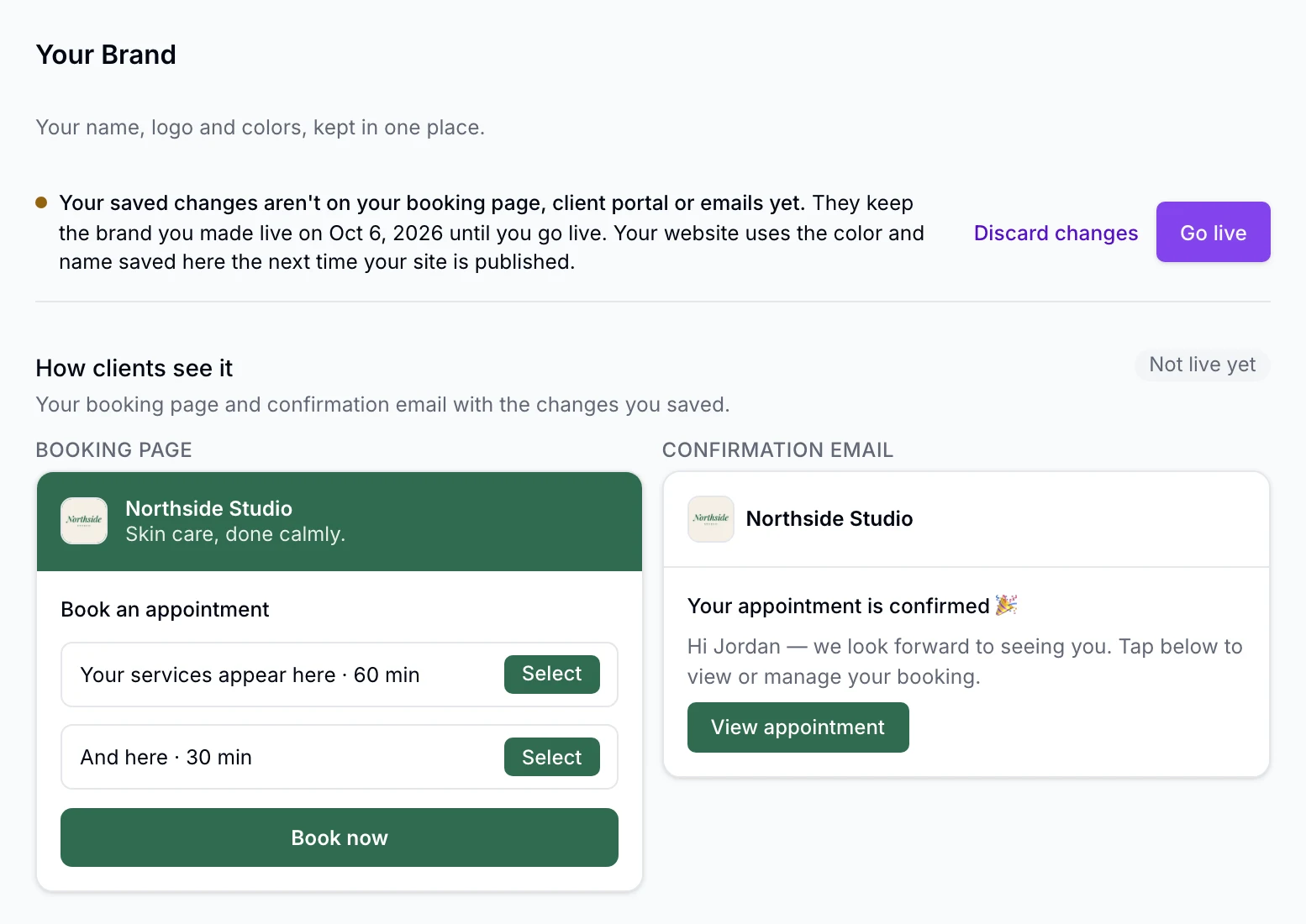
Try the change before clients see it.
Preview a new logo or color in illustrative booking and email views. Later edits stay in a draft until you publish them together.
- Each editing drawer stages its saved changes; Go live publishes everything staged in one action
- The first save goes live at once; later edits stage as a draft
- Discard a staged draft and keep what’s live
- Your logo is a photo from your Media library, never a pasted web address
You choose when it represents you.
Your team approves public display separately. Saving or going live alone does not put an unapproved brand on your booking page, Client Portal or emails.
- Only team members allowed to manage your public site can change it; others see it read-only, managed by the owner
- One page in the staff web app, under Settings › Business
Brand profile: setting it up
- Business name, tagline, logo and one primary color in one profile
- The logo is a photo from your Media library
- Contrast advice for buttons against white while you choose the color
Brand profile: going live
- The first save goes live; later edits stage as a draft
- Discard a draft and keep what’s live
- One status line: live since when, draft waiting or not
- Public display is approved separately
See the brand settings and current boundaries
A different logo or color for one location or one provider, fonts and a palette of several colors, your brand on PDF receipts and gift cards, and suggested taglines or colors are later. Your Brand is one logo and one color carried where EstheticSense shows your studio; it is not a full asset library, and it doesn’t pick your website’s header logo.
Your Brand is included in the subscription. See pricing.
A few useful details.
Before you switch
- One service per booking, with optional add-ons.
- Link from your existing website; embedding the booking page isn’t available.
- Individual client blocking isn’t available yet.
Getting your link live
- Publish each location when it’s ready, then share its booking link.
- One switch turns online booking off everywhere, and back on.
- Multiple locations? Clients choose one first, then see its services and providers.
Matching returning clients
- The first and last name must match, plus the email or phone on file. Exactly one matching client? The booking joins that record. Otherwise, a new record is created.
Policies, taken times and the waitlist
- When you set a cancellation policy, clients agree to it before confirming.
- If someone else takes a time first, that booking attempt is refused.
- No suitable time? Clients can join your waitlist.
See a booking from both sides.
Book a sample visit in a demo. See where it lands on your calendar.